Job card software for Sage 200 Evolution, by a Sage Technology Partner

Every job, every part, every hour. Already in Sage.

Swap the paper job card and the spreadsheet for one simple system. Your technicians log their work and parts on a phone or PC, the store hands out the stock, and it all lands in Sage Evolution automatically. No retyping, no lost parts, no month-end guesswork.

Sage Partner
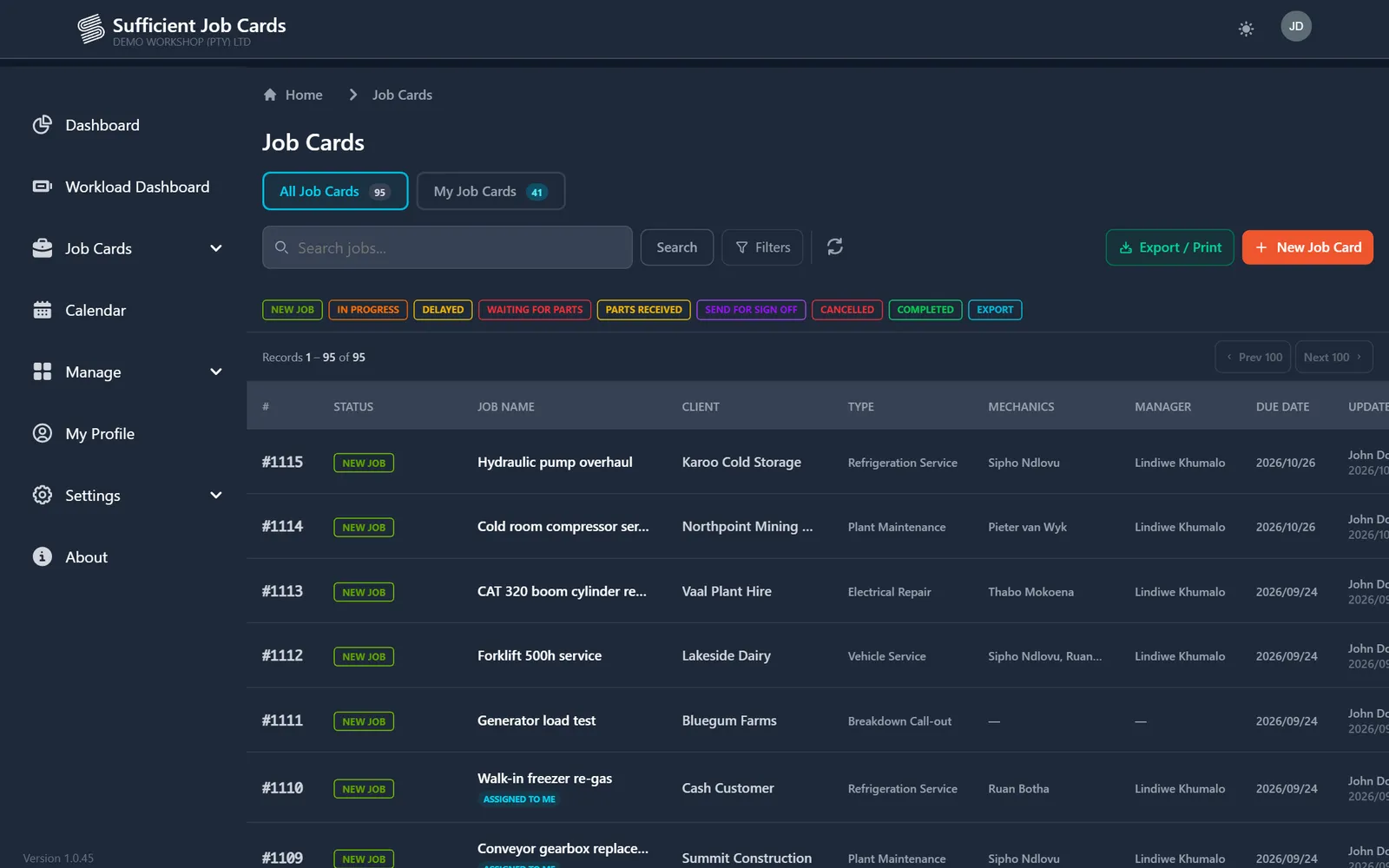
Job card list showing job numbers, statuses, clients, job types, mechanics, managers and due dates
Sales ordersStock issued to a job card is posted to Sage Evolution
Credit notesUnused stock returned from the job is credited automatically
Sage projectsOne per job card, or one per machine. Set per job type
Browser-basedWorks in the workshop, at the store counter and on a phone on site

A job, start to finish

From call-out to Sage, step by step

  1. Office

    Job card created

    Pick the client from your Sage customers, choose a job type, set planned and due dates, and assign mechanics and a manager. A job number is issued from your own prefix and sequence, and a Sage project can be created at the same moment.

  2. Mechanic

    Work logged on site

    Record the machine and its odometer or hour reading, tick off the checklist, log time, add photos and notes, and move the job through statuses such as In progress or Waiting for parts.

  3. Mechanic

    Parts requested

    Request stock from a specific warehouse. The request shows on the job card and in the store's queue immediately.

  4. Store

    Stock fulfilled

    The store issues the parts, in full or in part. The issue is posted to Sage Evolution against the job's project. Unused parts are returned to stock as a credit note.

  5. Client

    Signed off

    The client gets a link, reviews the work and signs on screen. You decide whether they see stock pricing, service pricing, time logs, checklists or attachments.

  6. Manager

    Completed and invoiced

    Invoice the way you choose: manually in Sage, by staging a sales order for your team to process, or automatically when the job is completed. Services can be itemised or sent as one service line.

Who it's for

Built for businesses that fix things and bill through Sage

If your technicians go out to sites, or your workshop has machines on the floor, and your accounts already live in Sage Evolution, Sufficient Jobcards fills the gap between the work and the invoice.

  • Refrigeration and HVAC contractors who track gas, copper and parts per call-out
  • Plant hire and earthmoving companies that need a cost history per machine
  • Fleet and vehicle workshops that service by kilometre or hour reading
  • Electrical and mechanical maintenance teams working from a central store room
  • In-house maintenance departments that cost repairs back to assets or projects

Why switch

Paper job cards compared with Sufficient Jobcards

Paper card and spreadsheetSufficient Jobcards
Parts used on a jobWritten on the card, retyped into Sage later, or missedRequested on the card, issued by the store, posted to Sage
Returned partsBack on the shelf with no recordReturned against the job and credited in Sage
Cost per jobRebuilt from invoices at month endBuilt up in the job's Sage project as work happens
Cost per machineNot trackedMachines with their own Sage project collect every job's stock
Who's on whatA whiteboard or a phone callWorkload dashboard with every worker's open jobs
Client sign-offSignature on a carbon copySigned on screen through a link, stored with the job
Changes and disputesWhose handwriting is this?Version history and an event log of every change

Features

What happens on a job card

01

One record for the whole job

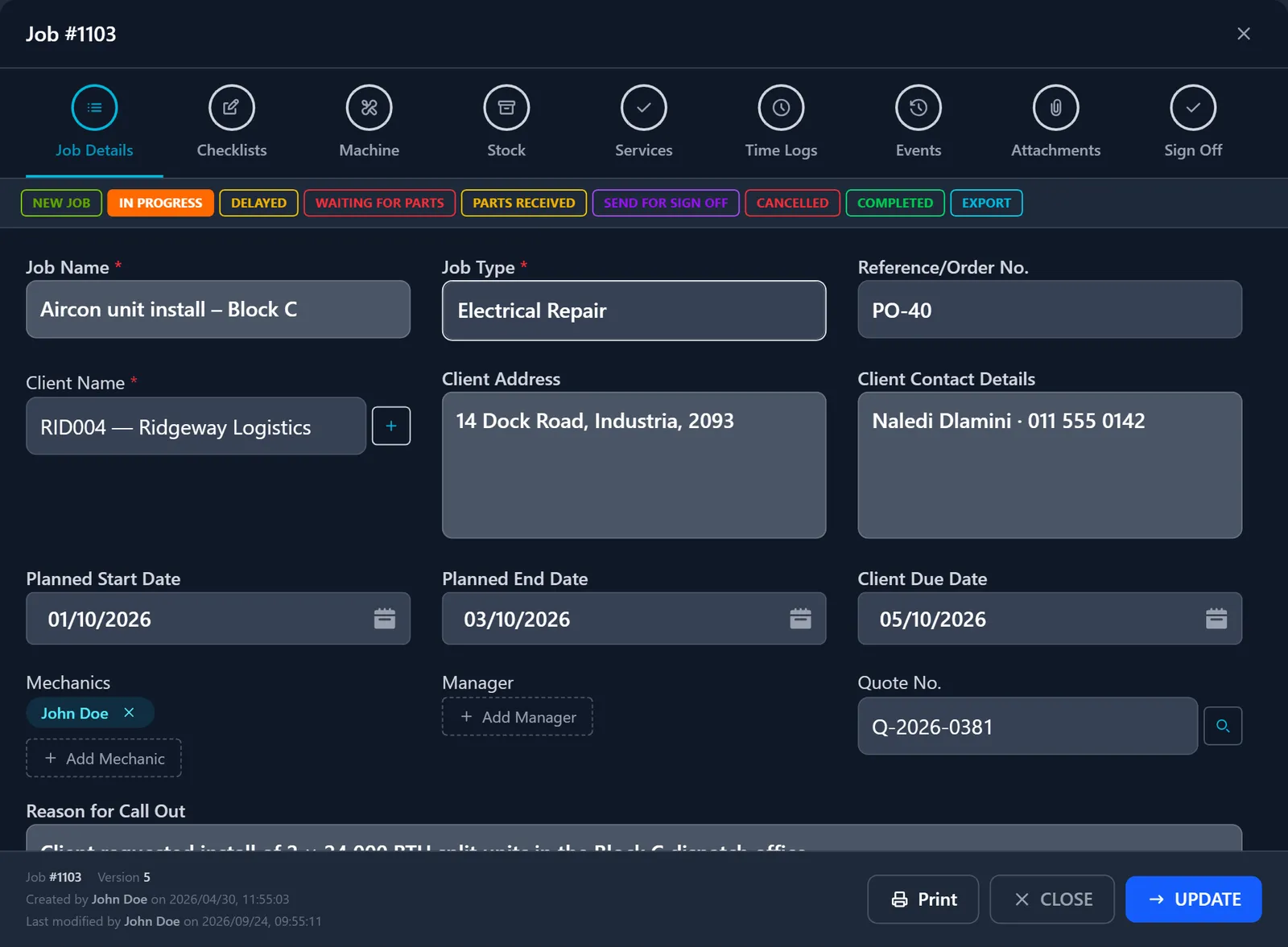
Each job card holds the client from your Sage customer list, the job type, planned and due dates, assigned mechanics and manager, the reason for the call-out and the work carried out. Checklists, machines, stock, services, time logs, events, attachments and sign-off sit in tabs on the same card.

  • Custom statuses, such as Waiting for parts or Send for sign off
  • Every save creates a new version, and the card warns you if someone else changed it first
  • On-hold Sage customers are flagged as soon as the card opens
Job card detail with job name, job type, client, address, contact, dates, mechanics and quote number
02

Stock requests the store can actually fulfil

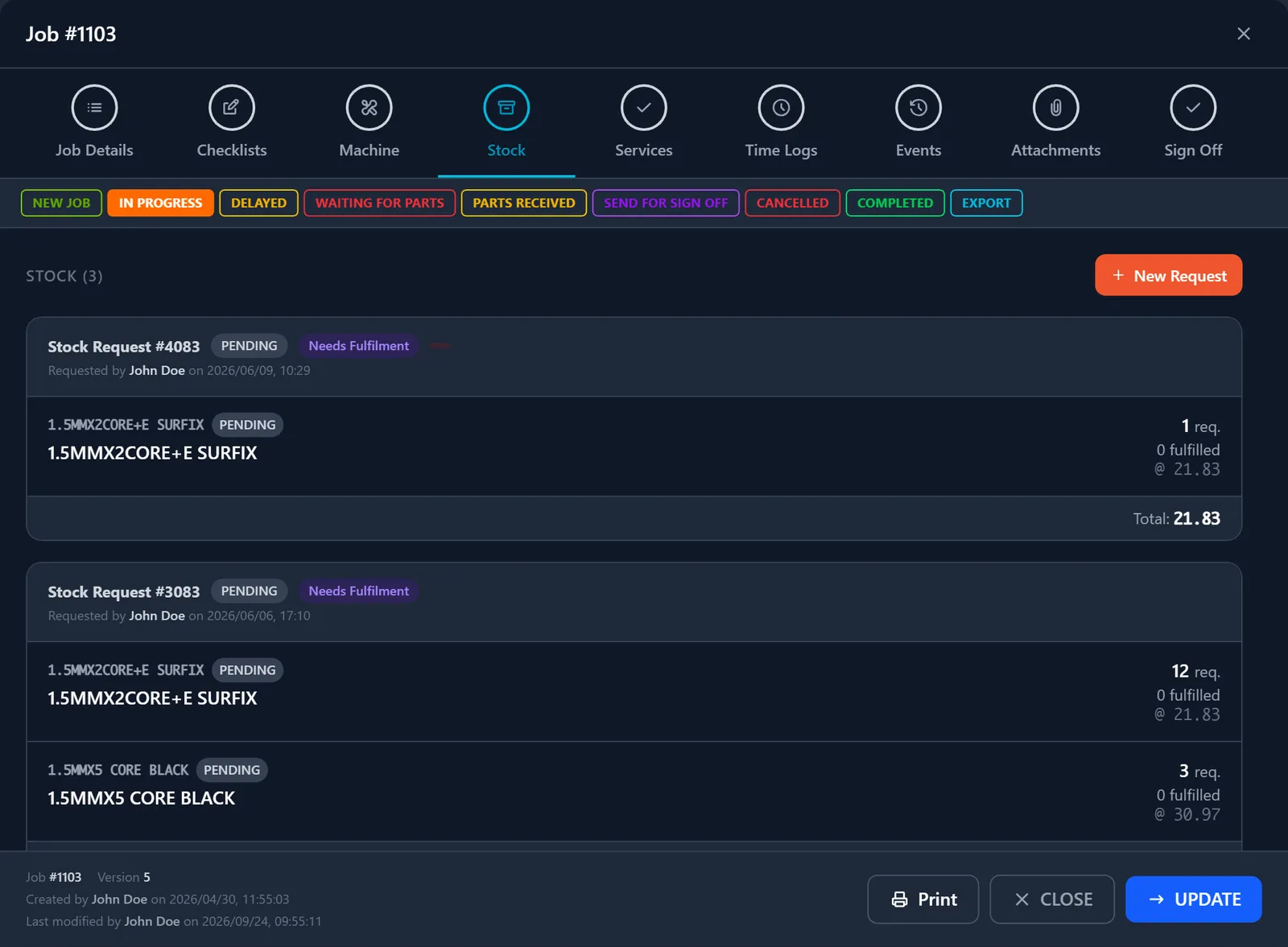
Mechanics request parts from a warehouse on the job card. The store sees one queue of pending requests, fulfils them in full or in part, and the issue posts to Sage Evolution. Returns go back the same way, as credit notes.

  • Requested, fulfilled and returned quantities per line
  • Prices pulled from your Sage price lists per warehouse
  • Failed postings are flagged on the card, so you can retry them
Stock tab of a job card listing stock requests with requested and fulfilled quantities and totals
03

A fulfilment queue for the store room

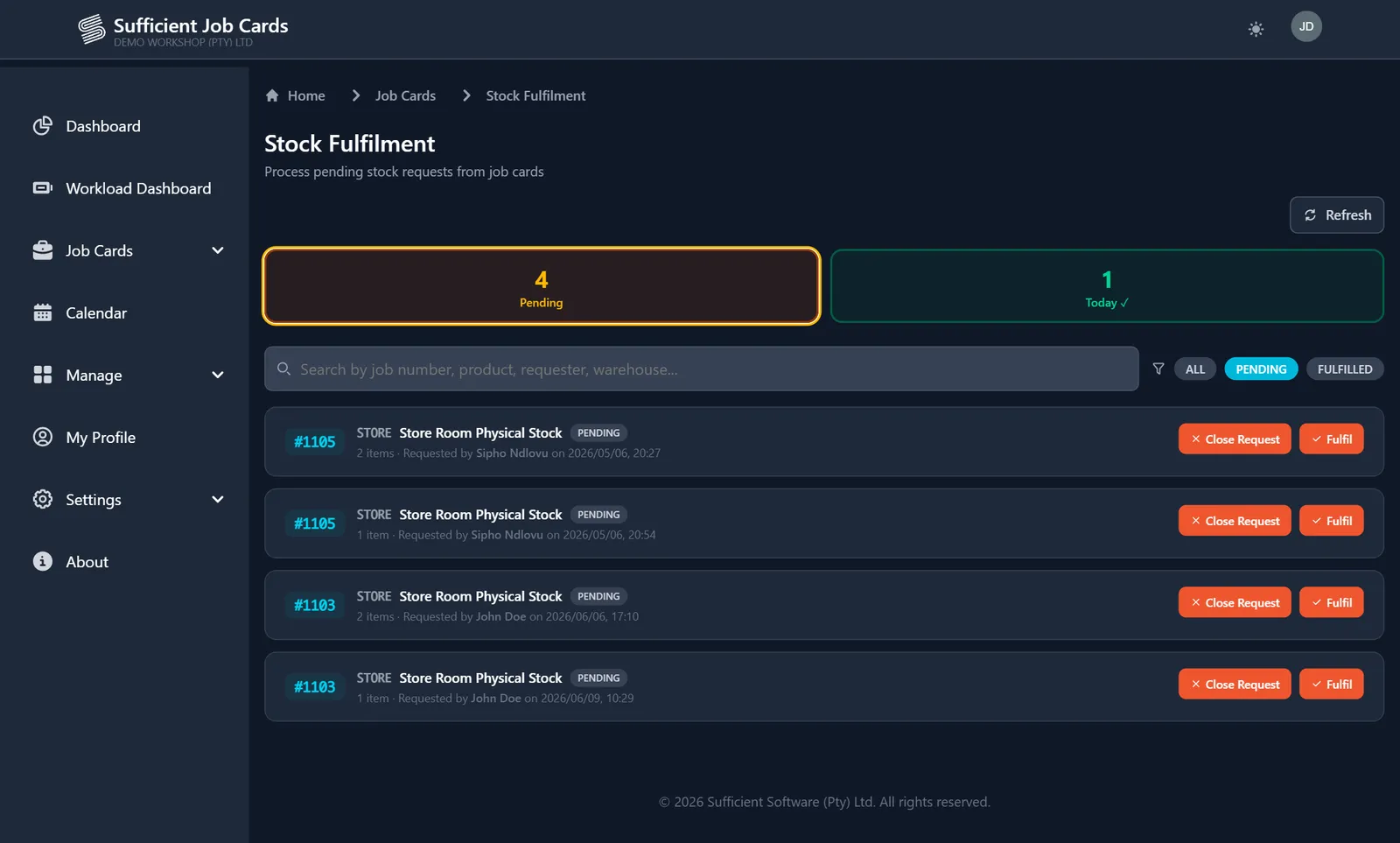
Store staff work from one screen of pending requests across all jobs, filtered by warehouse, product or requester. Fulfil a request or close it, and the job card updates straight away.

Stock fulfilment page listing pending requests with Fulfil and Close Request buttons
04

Machines and vehicles with a history

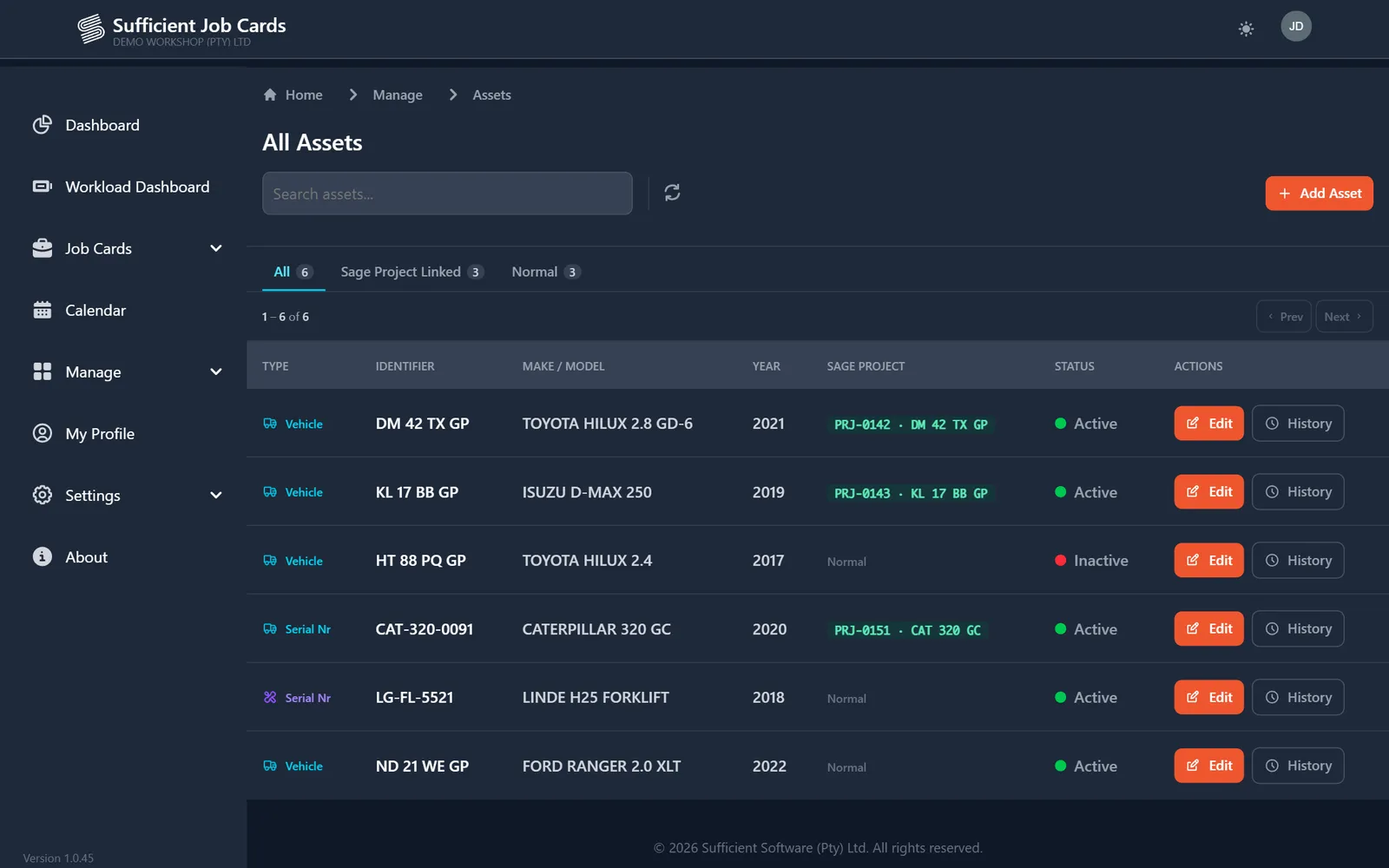
Register vehicles by registration number and odometer, or equipment by serial number and hour meter. Readings are captured on each job, so you can see when a machine was last serviced and what it has cost.

  • Link an asset to its own Sage project, created for you or chosen from existing ones
  • Reading history per asset
Asset list of vehicles and serial-numbered equipment with make, model, year and linked Sage project
05

Job types that enforce your process

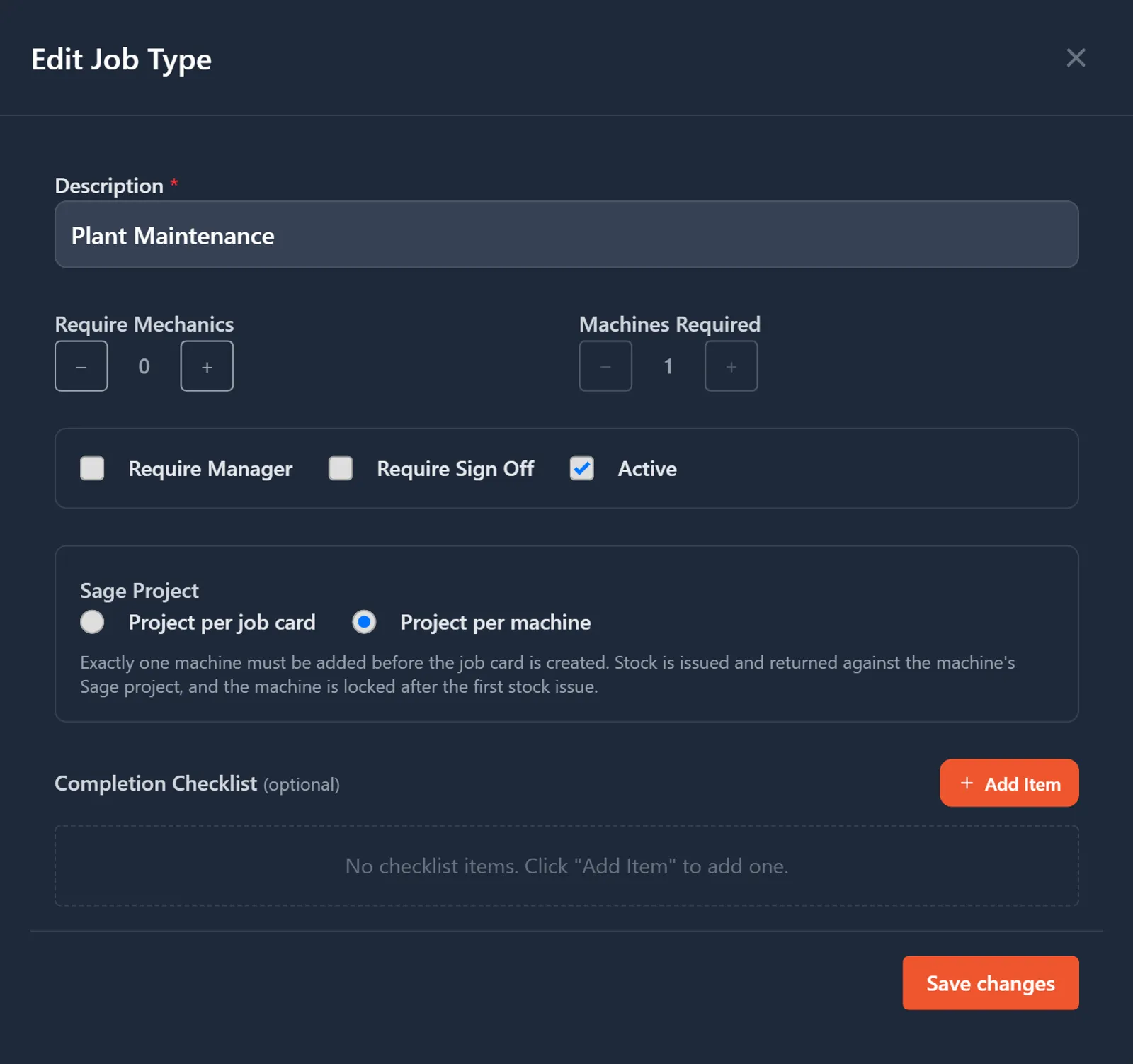
Decide per job type how many mechanics and machines are needed, whether a manager or client sign-off is required, and which checklist must be completed before the job can close. Choose whether the job costs to its own Sage project or to the machine's.

Edit Job Type dialog with required mechanics, machines, sign-off and Sage project per machine option
06

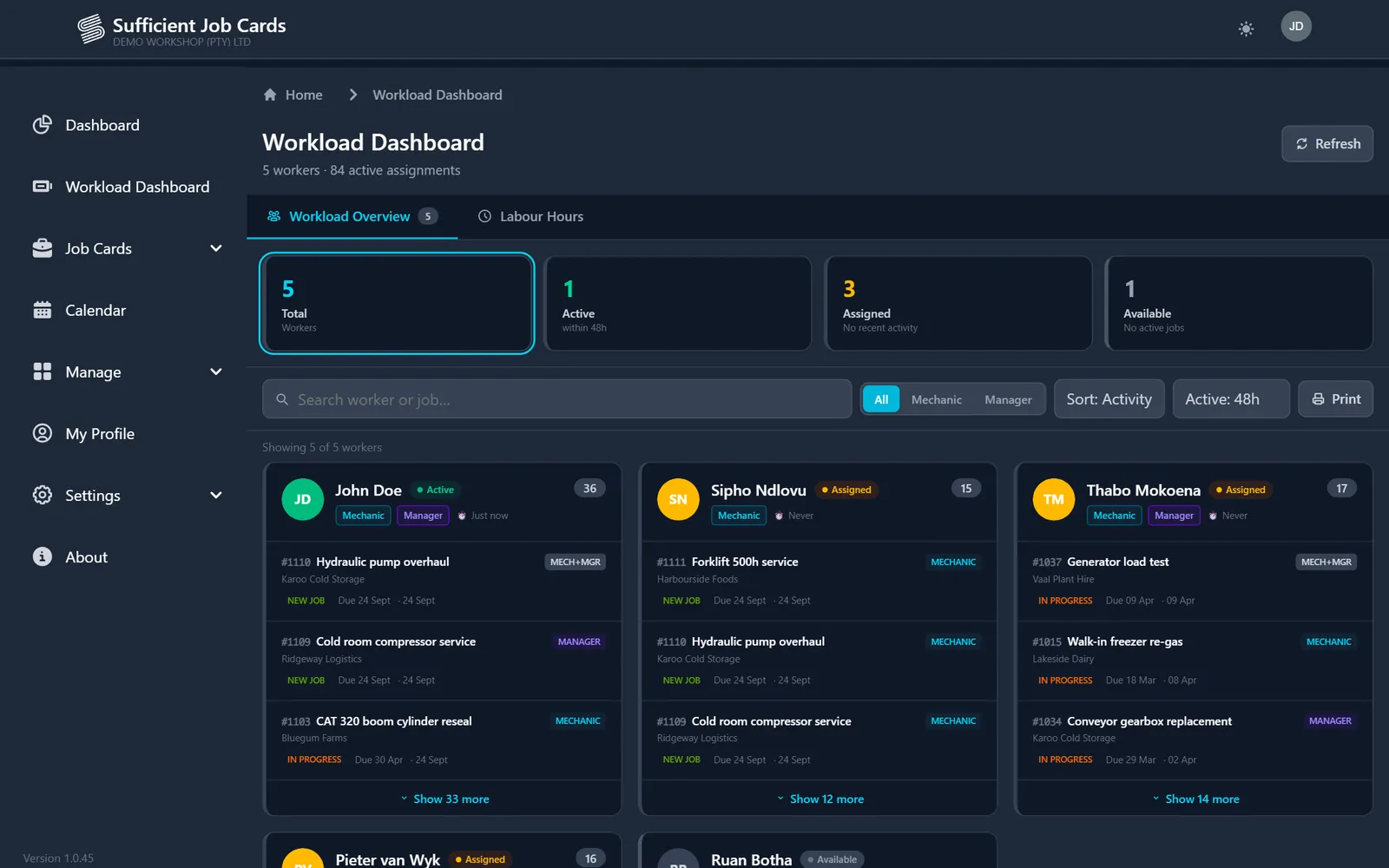
See who is busy before you assign the next job

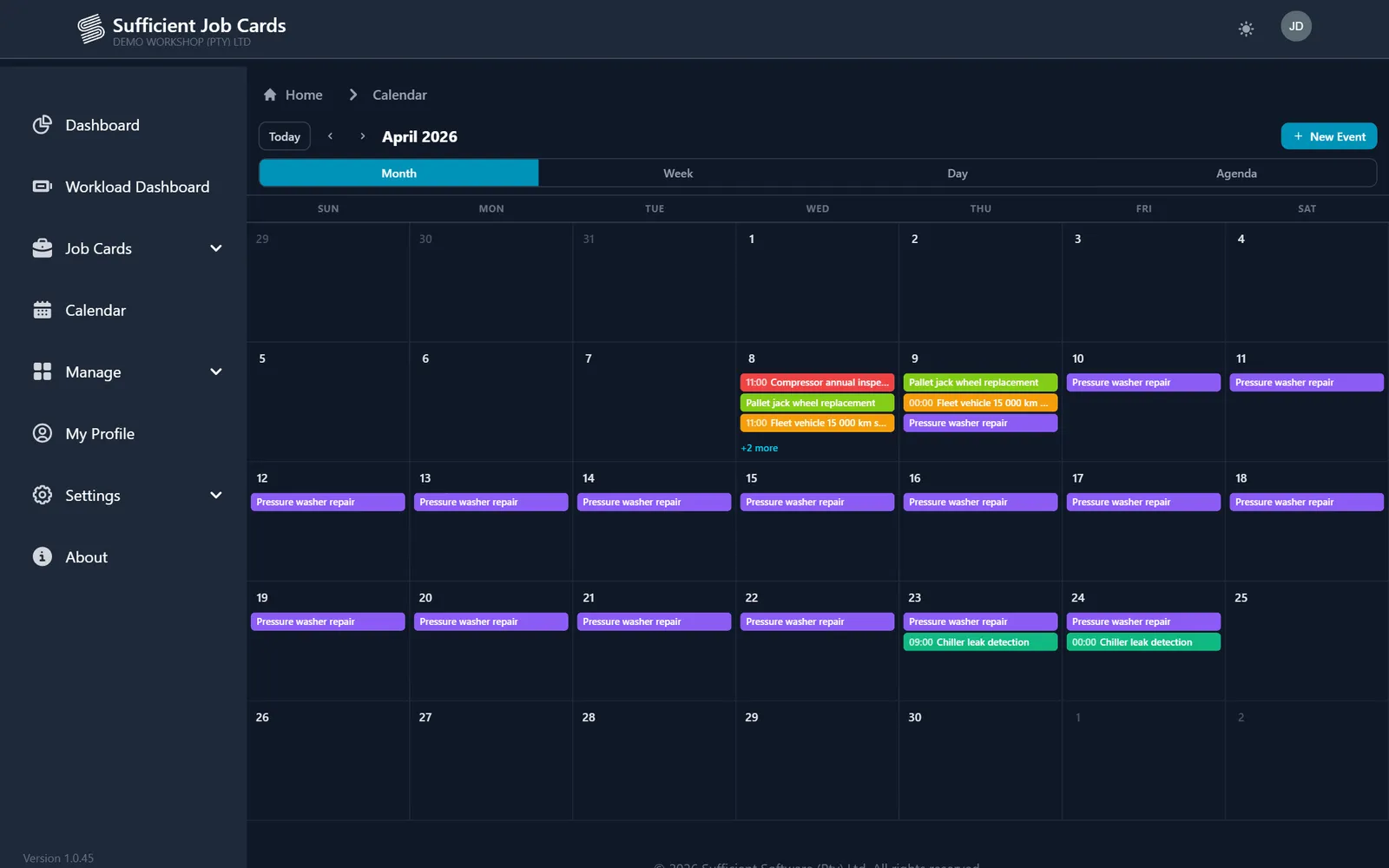
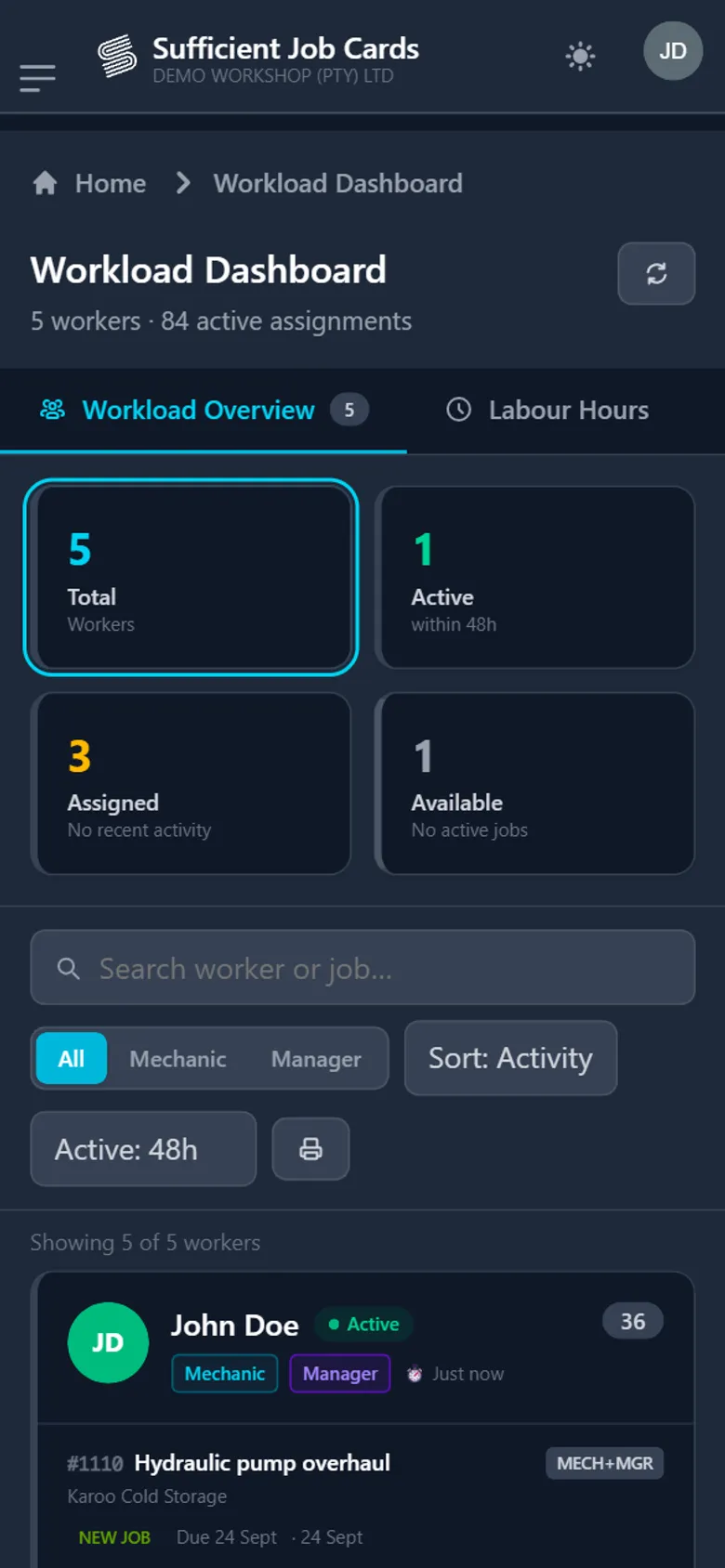
The workload dashboard shows each mechanic and manager, their open jobs, and when they last did anything. Labour hours come from time logs, in extended or summary mode. The calendar shows planned work by month, week or day, with reminders.

Workload dashboard with worker cards showing assigned jobs and activity

Services and labour

Labour and consumable service items, priced manually or from Sage, with cost and selling totals per job.

Remote client sign-off

Send the client a link. They review the job and sign on screen, with no login needed.

Print and export

Full, selling-only, quantity-only or no-items job card prints, and an export of the job card list.

Attachments and events

Photos and documents on the card, and a full history of who changed what and when.

Sage Evolution integration

How the Sage link works

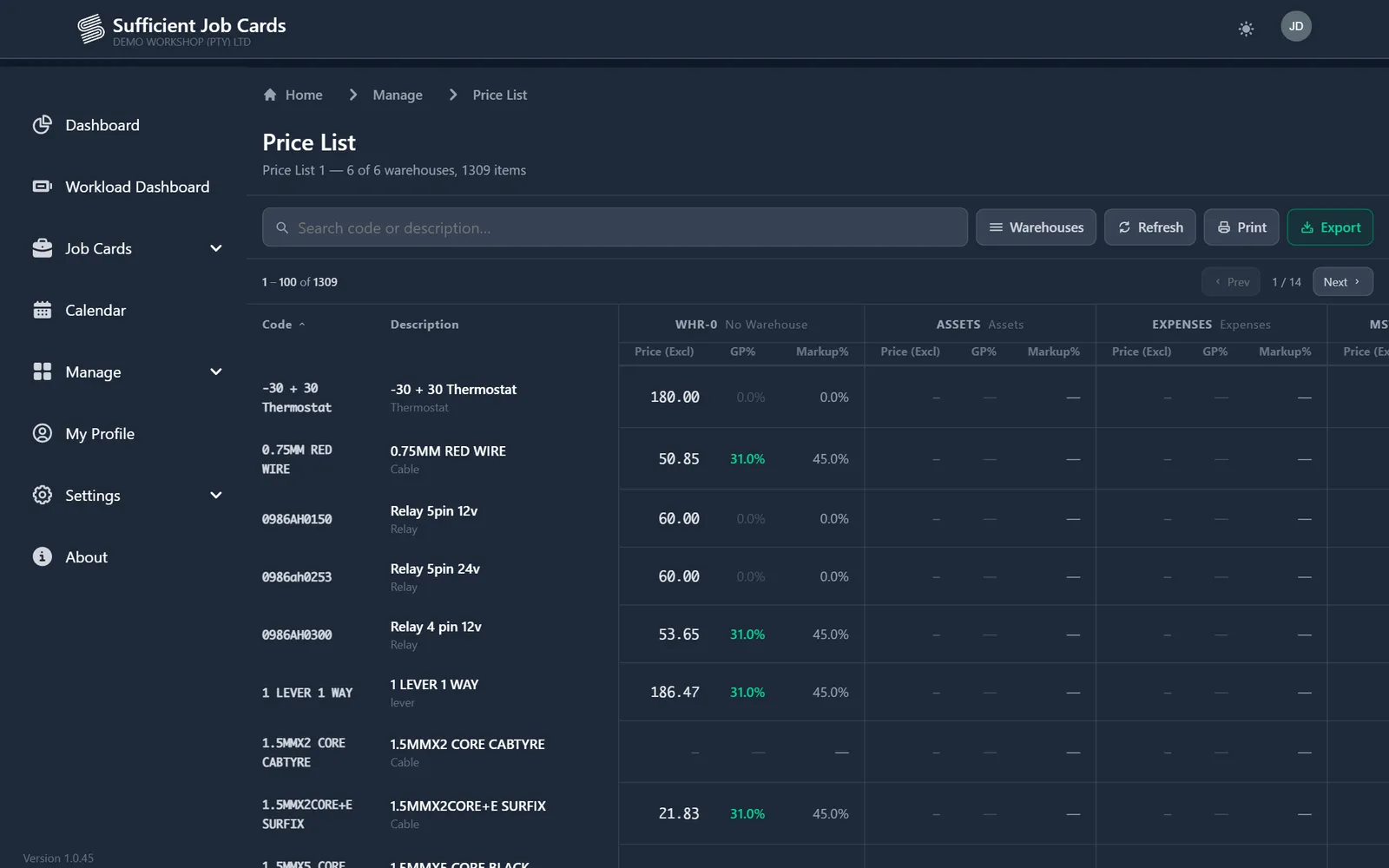
Sufficient Jobcards talks to your Sage Evolution company through a small bridge service installed on your network. Customers, items, prices and projects are read from Sage. Stock movements are written back as normal Sage documents, so your accountant sees nothing unusual.

  1. Job card opened

    Client selected from Sage customers. Account status is checked.

  2. Project assigned

    A Sage project is created for the job, or the machine's own project is used.

  3. Stock issued

    The fulfilled request is posted as a sales order against that project.

  4. Stock returned

    Unused parts go back as a credit note.

  5. Job closed

    Costs per job and per machine are in Sage, ready for invoicing and reporting.

What gets written to Sage, and when

When this happens in JobcardsThis is created in Sage Evolution
A job card is created (optional setting)A project for the job
A machine is set to Sage Project LinkedA project for the machine, or a link to an existing one
The store fulfils a stock requestA sales order for the issued stock, against the project
Stock is returned from the jobA credit note for the returned stock
The job is completed (optional auto-export)A sales order for services, saved or processed, itemised or as one line

Read from Sage: customers and their on-hold status, inventory items, warehouses, price lists and cost prices, and existing projects. The bridge and the web app authenticate with a shared key you can rotate in settings.

Project per job card

The default. Every job card gets its own Sage project, so each job's cost and margin can be reported on separately.

Project per machine

For plant, fleet and contract maintenance. The job card must have exactly one machine, and stock is issued against that machine's project, so its lifetime cost builds up in one place.

Configuration

Set up to match how you work

Numbering

Your own job number prefix and starting number.

Warehouses

Separate costing and invoicing warehouses, plus a customer code for stock issues and returns.

Statuses

Name and colour your own statuses. Out of the box: New job, In progress, Delayed, Waiting for parts, Parts received, Send for sign off, Cancelled, Completed, Export.

Job types

Required mechanics, manager, machines, client sign-off and completion checklist, and project per job card or per machine.

Service items

Labour and consumables, priced manually or from Sage, with cost and selling price per line.

Branding

Company details, logo and tagline on every printed job card, and your own background on the sign-in page.

Client sign-off page

Choose exactly what the client sees: stock, services, pricing, time logs, checklists, attachments. Everything is hidden until you switch it on.

Users

Mechanics and managers, each with their own login and a "My job cards" view.

Six print modes, for six different readers

ModeShowsTypical use
FullEverything on the cardInternal file copy
Qty + price + costQuantities, selling prices and cost pricesManager margin review
Qty + priceQuantities and selling pricesClient copy with pricing
Selling onlySelling prices without costQuote or invoice backup
Qty onlyQuantities, no pricesDelivery note or site copy
No itemsJob details and work done onlyWork instruction for the mechanic

Set a default mode, and lock modes you don't want staff to use. The job card list can also be exported and printed.

Workload dashboard on a phone screen

On site

Runs in the browser, including on a phone

There is nothing to install on mechanics' devices. The same screens work on a desktop in the office, a tablet at the store counter, or a phone in the field. The app has light and dark themes.

FAQ

Questions from workshop owners and accountants

Not covered here? Ask us directly.

Sage and accounting

What exactly will it write into our Sage company?

Only four kinds of document: projects (per job card or per machine), sales orders for stock issued to a job, credit notes for stock returned, and, if you switch it on, a sales order for services when a job is completed. Customers, items and prices are only read, never changed.

How does invoicing work?

You choose how it works when you go live. There are three options:

  • Invoice manually in Sage Evolution, as you do today
  • Stage the order for invoicing: each completed job becomes a saved sales order that your team checks and processes
  • Invoice automatically: the sales order is processed as soon as the job is completed
Our accountant wants cost per machine, not per job. Is that possible?

Yes. Set the job type to project per machine and link the machine to its own Sage project. Every job on that machine then issues stock to the same project, so its lifetime cost can be reported in Sage.

What if a client is on hold in Sage?

Their on-hold status is read from Sage, and a warning appears as soon as someone opens a job card for that client.

What if the link to Sage is down when the store issues stock?

The request is marked as failed on the job card and in the fulfilment queue. The store and office can see exactly which requests have not reached Sage yet.

In the workshop

A mechanic took ten metres of cable and used six. How is that handled?

The store fulfils the request for ten, and the four unused metres are returned against the same job. Sage receives a sales order for the issue and a credit note for the return, so the job is charged for six.

What happens if two people edit the same job card?

Every save creates a new version. If someone else saved the card after you opened it, you are warned before your changes overwrite theirs. Earlier versions can be viewed from the job card list.

Can we control what clients see on a printout or sign-off?

Yes. There are six print modes, from full cost and selling prices down to no items at all, and you can lock modes you don't want used. The client sign-off page shows only the sections you switch on.

Can mechanics use it on their phones?

Yes. It runs in the phone's browser with the same screens as the desktop, so there is no app to install or update.

Can we see who changed a job, and when?

Each job card has an event log and full version history, showing who created it, every status change and every edit, with dates and times.

Setup

What do we need to run it?

Sage Evolution, a machine on the same network as your Evolution database for the bridge service, and a browser for each user. We will agree where the web app is hosted during setup.

Do we have to import our customers and stock?

No. Customers, inventory items, warehouses, prices and projects are read from Sage Evolution, so there is no second list to maintain.

Can we keep our existing job numbers?

Yes. Set your own job number prefix and the number to continue from.

Can we use our own statuses, job types and checklists?

Yes. They are all set up in settings without any development work.

Buying

How is it priced?

Pricing depends on the number of users and your Sage Evolution setup. Contact us for a quote.

Can we see it before we commit?

Yes. Book a demo and we will walk through a job from call-out to credit note, and how it would fit your workshop.


Contact

See it running against your own Sage data

We will walk you through a job from call-out to credit note, and talk about how it fits your workshop.